Attendance System
A desktop app for keeping track of students, courses and attendance, built with JavaFX. It runs on Windows, macOS and Linux. The database is embedded, so there is no server to install: clone, build, and log in.
Features
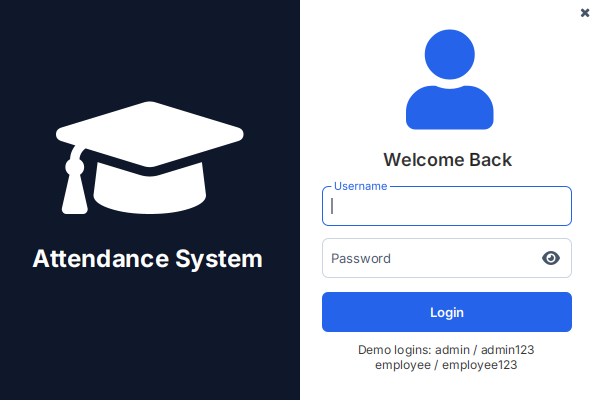
- Login with two roles. Passwords are stored as bcrypt hashes. An Admin can manage users; an Employee can’t see that screen.
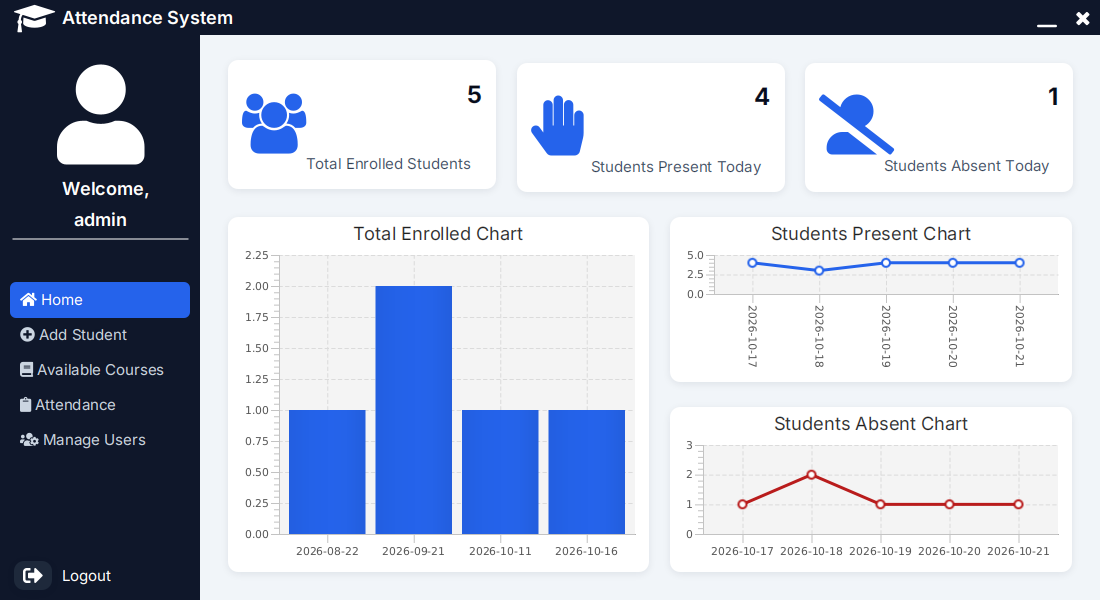
- Dashboard with totals and charts of present and absent students.
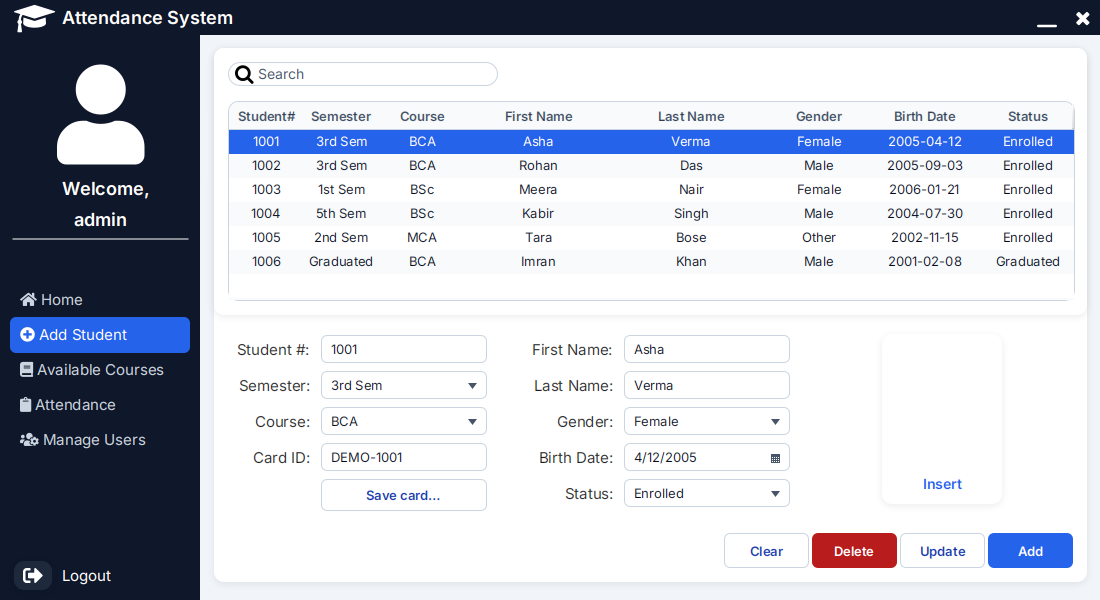
- Students: add, edit, delete and search, with an optional photo.
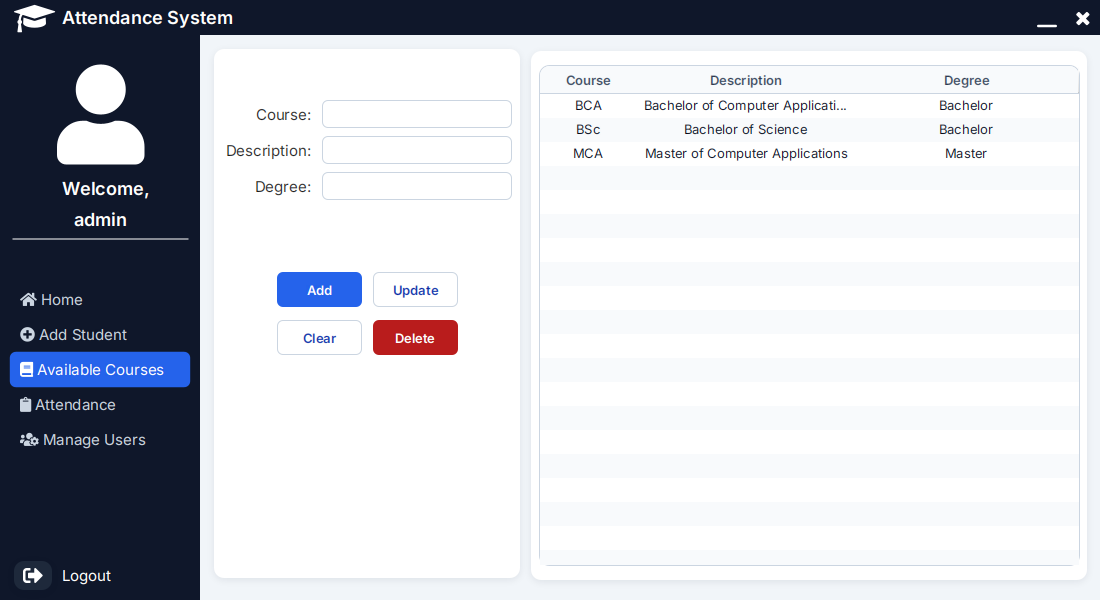
- Courses: add, edit and delete. A course that students still use can’t be deleted.
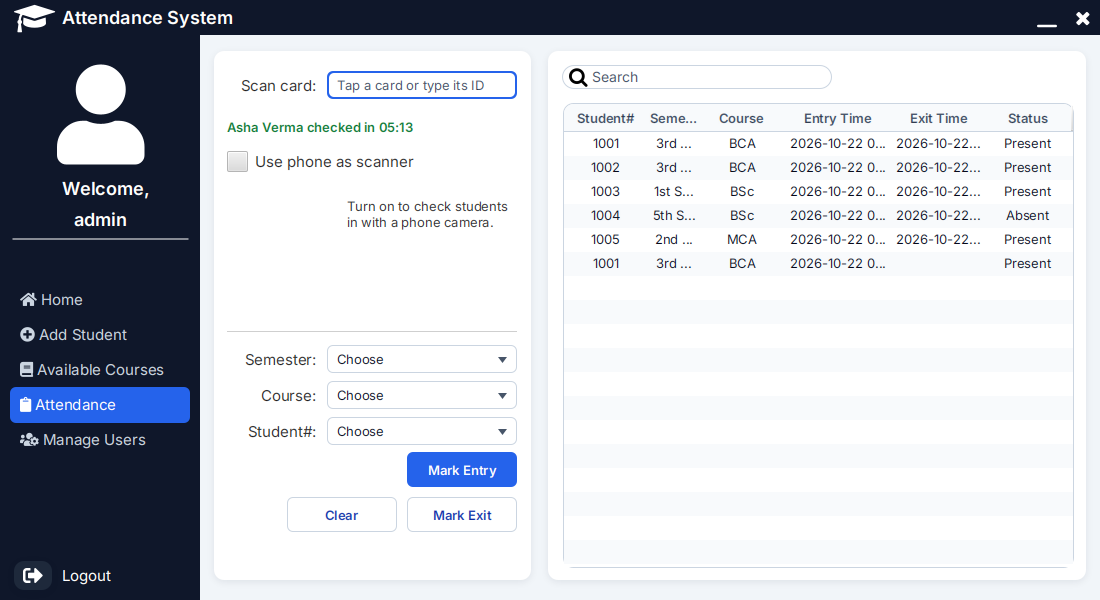
- Attendance: record entry and exit times by picking a student, or by scanning their card.
- Card scanning: each student can have a card ID. An RFID reader, a barcode or QR scanner, or plain typing fills the scan field; the first scan of the day checks the student in, the next one checks them out. Each student’s QR card can be saved as a PNG to print.
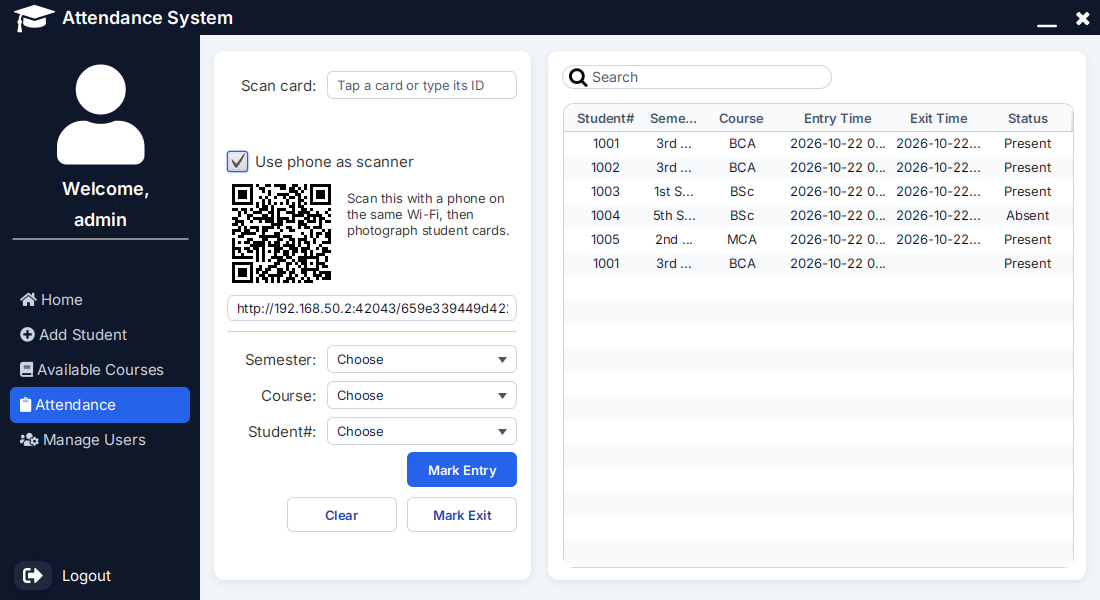
- Phone as scanner: no reader at hand? Switch on “Use phone as scanner”, scan the pairing QR code with a phone on the same Wi-Fi, and photograph a student’s QR card.
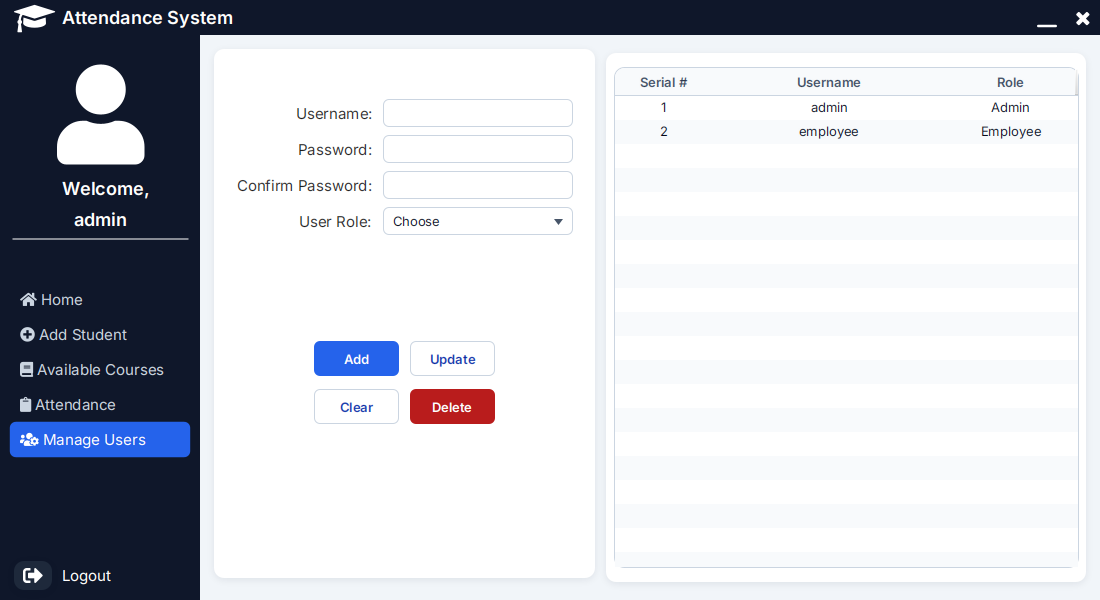
- User management (Admin only): add, edit and delete users and set their role. Nobody can delete themselves, and the last Admin can’t be removed or made an Employee.
| Login | Students | Courses |
|---|---|---|
 |
 |
 |
| Attendance | User management | Phone scanner |
 |
 |
 |
Try it
Download
Each GitHub Release has a ready-to-run build for Linux (.deb or .tar.gz),
Windows (.zip) and macOS (.dmg). It brings its own Java runtime, so nothing else needs to be
installed. The Windows and macOS builds aren’t signed, so the first start shows a warning. On
Windows, click More info and then Run anyway. On macOS, right-click the app, choose
Open and confirm.
Build from source
You need JDK 25 or newer and Git. Maven doesn’t
need to be installed: ./mvnw downloads the right version.
git clone https://github.com/XAPHNE/AttendanceSystem.git
cd AttendanceSystem
./mvnw javafx:run
On Windows, use mvnw.cmd javafx:run. The build stops with a clear message if your JDK is older
than 25. In IntelliJ IDEA, open the folder and run AttendanceApplication.
Demo logins
On the first start the app creates its database and fills it with demo data: fictional students, three courses and a few days of attendance.
| Username | Password | Role |
|---|---|---|
admin |
admin123 |
Admin |
employee |
employee123 |
Employee |
Scan a card in 30 seconds
- Log in as
admin/admin123and open Attendance. - The Scan card field already has focus. Type
DEMO-1001and press Enter: “Asha Verma checked in” appears and a new row shows up in the table. Every demo student has a card,DEMO-1001toDEMO-1006. - Wait a few seconds and scan
DEMO-1001again to check her out. - Optional: tick Use phone as scanner, scan the QR code with your phone (same Wi-Fi), and type a card ID on the phone, or photograph a QR card saved with Save card… on the Add Student screen.
Using an RFID reader
Almost every USB RFID reader, and most barcode and QR scanners, work in keyboard mode: the computer sees them as a keyboard that types the card’s number and presses Enter. So no driver or setup is needed:
- Plug the reader in.
- On Add Student, select a student, click the Card ID field and tap their card. The reader types the ID; save the student.
- On Attendance, tap the card. The scan field has focus, so the reader’s Enter checks the student in or out.
Without a reader, typing the ID and pressing Enter does exactly the same thing. A second scan of the same card within 5 seconds is ignored, so one tap doesn’t check a student in and straight out again.
Tech stack
| Part | Choice |
|---|---|
| Language | Java 25 (LTS), one Java module |
| UI | JavaFX 27, FXML, MaterialFX, Ikonli icons, the Inter font |
| Database | H2 (embedded), schema managed by Flyway migrations |
| Passwords | bcrypt (jbcrypt) |
| QR cards | ZXing core |
| Phone scanner | The JDK’s built-in HTTP server (jdk.httpserver) |
| Build | Maven (wrapper included), jlink and jpackage for installers |
| Tests | JUnit 6, AssertJ, TestFX, JaCoCo coverage gate |
| CI | GitHub Actions on Linux, Windows and macOS, Dependabot |
Docs
- Architecture: the layers, startup, error handling, and what each test suite covers
- Database: the tables, an ER diagram and the migrations
- Design decisions: why H2 and not MySQL (and how to switch), why Flyway, DAOs and bcrypt, card readers and the phone scanner, the UI design, and the known gaps
- Build and release: what CI checks on every push, how a tag becomes the Linux, Windows and macOS downloads, and what could be improved
Where the data is stored
The database and student photos live in a per-user folder, so the app works from any install location:
| OS | Folder |
|---|---|
| Windows | %APPDATA%\AttendanceSystem |
| macOS | ~/Library/Application Support/AttendanceSystem |
| Linux | $XDG_DATA_HOME/AttendanceSystem (default ~/.local/share/AttendanceSystem) |
Delete that folder to start over with fresh demo data. To use another folder, start the app with
-Dattendance.home=<folder>. To use another database, set ATTENDANCE_DB_URL,
ATTENDANCE_DB_USER and ATTENDANCE_DB_PASSWORD.
The schema is created and upgraded by Flyway from the
SQL files in src/main/resources/db/migration. To change the schema, add a new
V<next number>__<description>.sql file there; never edit a file that has already been released.
Earlier versions kept the database in the project’s data/ folder. That folder is no longer used.
Running the tests
Run ./mvnw verify (Windows: mvnw.cmd verify).
- The UI tests open the real app and click through it, so they need a display. On a Linux machine
without one (a server or CI runner) they are skipped; run
xvfb-run ./mvnw verifyto include them../mvnw verify -DexcludedGroups=uiskips them anywhere. - The build fails if the tests cover less than 90% of the lines in the
dao,serviceandscannerpackages. The coverage report is attarget/site/jacoco/index.html. - GitHub Actions runs the same build with the UI tests on Linux, Windows and macOS for every push
and pull request (
.github/workflows/ci.yml). A separate job tries the newest Java (27) as an early warning; it is allowed to fail.
Building a version that runs without Java
Run ./mvnw -Pdist clean package (Windows: mvnw.cmd -Pdist clean package).
target/dist/AttendanceSystem is then a folder with the app and its own small Java runtime. Copy
it to any computer with the same operating system and start bin/AttendanceSystem (Windows:
AttendanceSystem.exe, macOS: AttendanceSystem.app). That computer doesn’t need Java installed.
To build an installer instead, add -Ddist.type= followed by the type:
| OS | Type | Note |
|---|---|---|
| Linux | DEB |
Needs fakeroot. Add -Ddist.shortcuts=true -Ddist.linux-deps=libgtk-3-0 for a menu entry and the GTK dependency |
| Windows | MSI |
Needs the WiX Toolset |
| macOS | DMG |
How it works: jlink builds a Java runtime that holds only the JDK modules the app needs. jpackage
puts that runtime, the app and its libraries in one folder or installer. H2, Flyway and jbcrypt
and ZXing aren’t Java modules, and jlink can’t put those into a runtime, so they sit next to it
in lib/app/mods.
Publishing a release
Push a version tag, for example git tag v1.2.0 && git push origin v1.2.0. The first number must
be 1 or more, because the macOS installer refuses versions like 0.1.0. The release workflow
(.github/workflows/release.yml) then builds the app on Linux, Windows and macOS and attaches the
results to a new GitHub Release:
| File | What it is |
|---|---|
AttendanceSystem-<version>-linux-amd64.deb |
Installer for Ubuntu and Debian, with a menu entry |
AttendanceSystem-<version>-linux-x64.tar.gz |
The app folder for any Linux; start bin/AttendanceSystem |
AttendanceSystem-<version>-windows-x64.zip |
The app folder for Windows; start AttendanceSystem.exe |
AttendanceSystem-<version>-macos-arm64.dmg |
The app for Macs with Apple silicon |
Checking for dependency updates
Dependabot (.github/dependabot.yml) checks every week for newer libraries, build plugins, the
Maven version and GitHub Actions. It opens a pull request for them, and CI tests the update before
it is merged.
To check by hand, run ./mvnw versions:display-dependency-updates versions:display-plugin-updates.
It lists newer stable releases of the libraries and build plugins.
Editing the screens in SceneBuilder
The screens are FXML files in src/main/resources/com/bsmi/attendancesystem/fxml. To open them in
SceneBuilder, first add the libraries they use:
- In SceneBuilder, click the gear icon next to Library and choose JAR/FXML Manager.
- Click Search repositories and add each of these, then choose Import Component:
io.github.palexdev:materialfx:11.17.0org.kordamp.ikonli:ikonli-javafx:12.4.0org.kordamp.ikonli:ikonli-fontawesome-pack:12.4.0org.kordamp.ikonli:ikonli-fontawesome5-pack:12.4.0
The look comes from the stylesheets in src/main/resources/com/bsmi/attendancesystem/css;
theme.css holds every color.
License
This project is licensed under the GNU General Public License v3.0 - see the LICENSE file for details.
For more information about the GNU GPL v3.0 license, please visit the GNU website.